Why Isn’t My Website Showing Up on Google? Complete Troubleshooting Guide & Fixes
You spent time, capital, and energy launching a website for your enterprise. The design looks sharp, your service offerings are clearly outlined, and your team is ready to process inquiries. Yet, when you type your business name or core services into Google, your website is nowhere to be found. It feels like opening a modern storefront in the middle of a desert without any road signs. If you are asking why isn’t my website showing up on google, you are facing one of the most common and frustrating obstacles in web management.
The reality is that Google does not automatically display every website that goes live on the internet. Search engines rely on complex automated software—known as crawlers, spiders, or Googlebots—to discover, evaluate, and categorize web content. If your site lacks technical visibility, suffers from misconfigured files, or fails Google’s search quality standards, search engines will simply ignore it.
Understanding search engine visibility requires breaking down the exact points of failure between your web server and Google’s search index. This comprehensive guide covers the technical, architectural, and content-driven reasons why your site remains invisible on search engine result pages (SERPs) and provides practical steps to get it noticed.
Understanding Search Discovery: Crawling vs. Indexing vs. Ranking
Before attempting any technical fixes, you must understand how Google processes web pages. Many business owners assume these three stages are identical, but they represent distinct phases in search engine operation.
[ Discovery Phase ]  --->  [ Crawling Phase ]  --->  [ Indexing Phase ]  --->  [ Ranking Phase ]
Googlebot finds link       Reads code & content       Saves data in index       Calculates position
1. Crawling
Crawling is the discovery phase. Googlebot fetches your web pages by following links across the web or reading structural sitemaps. If your code prevents Googlebot from reading your assets, crawling fails, and search engines remain unaware of your content.
2. Indexing
Indexing occurs when Google analyzes the crawled page, categorizes its text, images, and layout, and stores it in its massive central database (the Search Index). A page must be indexed before it can appear in search queries. If Google crawls a page but determines it is duplicate, low quality, or blocked by directives, it will refuse to index it.
3. Ranking
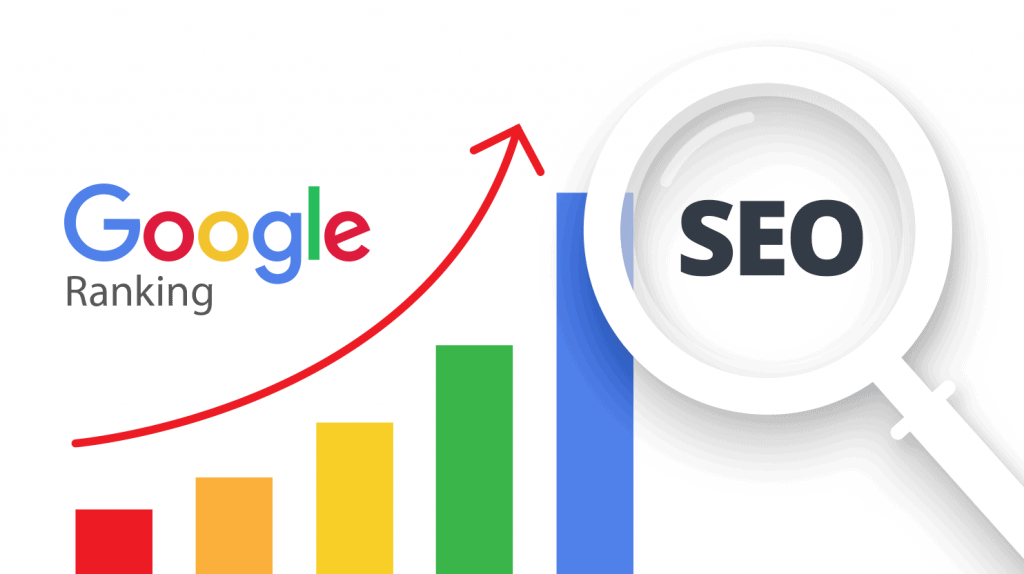
Ranking is the final evaluation stage. Once a page is stored in the index, Google evaluates hundreds of algorithm factors—including site speed, user experience, authority, and keyword relevance—to decide where your page appears when someone searches for a relevant term.
| Search Phase | What Google Is Doing | Common Failure Point | Diagnostic Tool |
| Crawling | Discovering URLs and reading raw site code. | Blocked by robots.txt or server timeouts. | Google Search Console Crawl Stats |
| Indexing | Processing content and adding pages to its database. | noindex tags, canonical errors, or thin content. | URL Inspection Tool |
| Ranking | Sorting indexed pages by relevance and authority. | Weak backlinks, poor local SEO, slow loading speed. | Google Search Console Performance |
9 Primary Reasons Why Your Website Isn’t Showing Up on Google
1. Your Website Is Brand New and Has Not Been Discovered Yet
If your domain was registered recently or your website was launched within the past few weeks, Google simply may not have discovered it yet. Web crawlers find new pages primarily by following links from existing, trusted websites. Without external signals, discovery takes time.
- The Reality: A newly launched domain takes anywhere from 3 days to 4 weeks to show up in basic search queries.
- Quick Check: Type
site:yourdomain.cominto the Google search bar. If no search results appear, your domain has not been indexed yet.
2. Search Engines Are Blocked in Your WordPress or CMS Settings
This is one of the most common causes of search invisibility on WordPress sites. During website development, developers frequently check a setting that tells search engine spiders to stay away while the site is under construction. If this option remains enabled after launch, Google will intentionally ignore the entire platform.
- How It Happens: A single box marked “Discourage search engines from indexing this site” inserts a
noindexinstruction across every page header. - The Solution: Navigate to Settings > Reading inside your WordPress administrative panel. Ensure the “Search engine visibility” checkbox is unchecked, then save changes immediately.
3. Your robots.txt File Is Blocking Crawlers
Your robots.txt file acts as the front door policy for automated search bots visiting your server. A minor misconfiguration in this text file can block Googlebot from scanning critical sections of your site—or the entire domain altogether.
A standard blocking directive in your robots.txt file looks like this:
HTTP
User-agent: *
Disallow: /
That single forward slash (/) explicitly commands every web search crawler to leave your entire website without inspecting a single page. Adjusting this file to allow appropriate access is vital.
HTTP
User-agent: *
Disallow: /wp-admin/
Allow: /wp-admin/admin-ajax.php

Sitemap: https://yourdomain.com/sitemap_index.xml
4. You Have Not Submitted an XML Sitemap to Google Search Console
An XML sitemap is a structured blueprint listing all important pages on your website. It guides Googlebot directly to your published content, helping it understand how pages connect and when updates occur.
Without a sitemap, Googlebot relies entirely on internal linking paths. If your navigation menu is poorly structured or orphan pages exist without internal links, search crawlers will miss them. Setting up an XML sitemap is essential for full indexation.
5. Your Pages Contain Meta noindex Tags or Incorrect Canonical Rules
Even if your robots.txt file is properly configured, individual pages can be instructed not to appear on search engines via page-level directives.
- The
noindexDirective: Placed in the HTMLsection,tells Google that while it can visit the page, it must never store or display it in search results. - Canonical Tag Conflicts: A canonical tag (
rel="canonical") tells search engines which version of a page is the master copy. If page A points its canonical tag to page B, Google will index page B and suppress page A from SERPs.
6. Severe Technical Performance & Mobile Usability Failures
Google uses mobile-first indexing. This means search algorithms crawl and evaluate the mobile version of your site to determine its indexation and ranking potential.
If your site is not responsive, breaks on mobile devices, or loads slowly on standard connections, search engines penalize your pages. Slow loading times consume excess search budget, causing Googlebot to stop crawling your site before reading key assets. Optimizing technical performance through dedicated Website Speed Optimization Uganda processes ensures search crawlers process pages smoothly.
Mobile-First Crawl Test:
Mobile Load Speed < 2.5s?   --> YES --> [ Maintain Crawl Priority ]
Mobile Load Speed > 6.0s?   --> NO  --> [ De-prioritize Crawl Frequency ]
7. Thin, Low-Quality, or Duplicate Content
Google prioritizes search quality and helpful content. If your pages contain minimal text, generic descriptions copied from supplier manuals, or identical content duplicated across multiple URLs, Google may classify them as low value.
- Thin Content: Pages with fewer than 200–300 words that fail to answer user intent thoroughly.
- Duplicate Content: Multiple URLs displaying identical text confuse search crawlers, leading Google to ignore the duplicates to save index space.
8. Complete Lack of Search Engine Optimization (SEO) & Local Visibility
If you search for competitive phrases like “best safari hotel in Entebbe” or “law firms in Kampala”, your website won’t rank simply because it exists. Appearing on the first page requires structured optimization.
Without clear title tags, meta descriptions, localized keyword targeting, and a verified Google Business Profile, your website remains practically invisible to local searches. Aligning your site content with comprehensive SEO Services Uganda is essential to outrank established competitors.
9. Google Penalty or Security Block (Malware/Hacking)
If your site was once visible on search engines but suddenly disappeared completely, it may have suffered a security breach or manual action penalty.
- Security Flagging: If malicious scripts or spam links are injected into your server, Google flags your site with warnings like “This site may be hacked” or removes it from SERPs entirely to protect searchers.
- Manual Actions: Black-hat practices like buying cheap link networks or hidden keyword stuffing can trigger manual reviews and algorithmic penalties.
Technical Audit & Troubleshooting Matrix
When investigating why isn’t my website showing up on google, work through this diagnostic process to isolate and resolve technical bugs.
                   [ Run site:yourdomain.com Search ]
                                   |
                  +----------------+----------------+
                  |                                 |
         [ Results Appear ]                [ No Results Found ]
                  |                                 |
        Check Ranking Issues              Check Indexing Blockers
   (Content, Speed, Backlinks)           (robots.txt, noindex, GSC)
1.Run a Site Search Operator Test:Takes less than 10 seconds.
Open your web browser and search for site:yourdomain.com.
- If pages appear: your website is indexed. your issue is a ranking problem, caused by poor keyword alignment, weak domain authority, or page speed issues.
- If zero results appear: your site is not in Google’s database. Your issue is an indexing or crawling block.
2.Inspect Search Engine Visibility Settings:Verify CMS crawl permissions.
Log into your CMS dashboard (such as WordPress).
- Go to Settings > Reading.
- confirm that Discourage search engines from indexing this site is completely unchecked.
- Save changes if any adjustments were made.
3.Review the robots.txt File Directives:Inspect your root server permissions.
Navigate to [https://yourdomain.com/robots.txt](https://yourdomain.com/robots.txt) in your browser. Check for blocks like Disallow: /. Ensure that search crawlers are allowed to access public pages, stylesheets, and JavaScript files.
4.Connect and Audit Google Search Console:Official diagnostic dashboard.
Sign into Google Search Console and verify domain ownership. Select the Page Indexing report to view the status of your site’s URLs.
Look specifically for these indexing flags:
- Discovered – currently not indexed (Crawl queue backlog or low priority).
- Crawled – currently not indexed (Quality or duplicate content issue).
- Excluded by ‘noindex’ tag (Direct code blockage).
5.Test URLs with the Inspection Tool:Force a live real-time crawl.
Paste your homepage URL into the search bar at the top of Google Search Console. Click Test Live URL to see how Googlebot views your page. If the test passes, click Request Indexing to place your page into the fast-track crawl queue.
Step-by-Step Fixes to Force Indexation & Improve Visibility
Once you’ve identified why your site isn’t appearing, follow these concrete steps to resolve technical issues and restore your visibility on Google.
Step 1: Submit Your XML Sitemap
If Google Search Console shows no active sitemaps, submit yours immediately. Most modern SEO tools and CMS platforms automatically generate sitemaps at standard paths like sitemap.xml or sitemap_index.xml.
- Log in to Google Search Console.
- Click Sitemaps under the Indexing tab in the left sidebar.
- Type
sitemap.xmlinto the Add a new sitemap field. - Click Submit.
Sitemap Submission Path:
[ Search Console ] ---> [ Sitemaps Tab ] ---> [ Input: sitemap.xml ] ---> [ Status: Success ]
Step 2: Fix Server Speed and Mobile Responsiveness
Slow sites waste crawl budget and perform poorly in search results. Test your website’s performance using Google PageSpeed Insights.
PageSpeed Optimization Plan:
1. Compress raw PNG/JPG images into next-gen WebP formats.
2. Enable browser caching and server-level GZIP/Brotli compression.
3. Deactivate heavy plugins and scripts that block main-thread execution.
4. Upgrade to high-performance SSD hosting infrastructure.
If your platform is slow or outdated, upgrading to modern custom WordPress Development Uganda standards or securing optimized Web Hosting Uganda can improve load times, ensuring search crawlers process your site effectively.
Step 3: Remove noindex Tags from Published Code
If Google Search Console reports that pages are “Excluded by ‘noindex’ tag”, inspect the source code of those URLs. Right-click the page, select View Page Source, and search (CTRL + F) for noindex.
If you find “, remove it using your CMS SEO settings (e.g., Yoast SEO, Rank Math, or All in One SEO). Ensure key templates for posts, pages, and products are set to “Index”.
Common Technical Mistakes That Kill Search Engine Visibility
Prevent technical misconfigurations from damaging your site’s search visibility.
+-------------------------------------------------------------------+
|                   CRITICAL TECHNICAL ERRORS                       |
+-------------------------------------------------------------------+
| ❌ Leaving staging/development URLs live and indexable           |
| ❌ Forgetting 301 redirects during domain migrations               |
| ❌ Mixing HTTP and HTTPS assets (Mixed Content Errors)           |
| ❌ Blocking CSS and JavaScript assets inside robots.txt            |
| ❌ Allowing broken canonical tags to point to homepage           |
+-------------------------------------------------------------------+
1. Launching Redesigns Without Proper 301 Redirects
When updating a website, changing page URLs without implementing permanent 301 redirects creates 404 errors. Google drops broken URLs from its index, erasing your existing search visibility. Always map old URLs to new paths during a redesign.
2. Blocking CSS and JavaScript in robots.txt
Years ago, search bots only read plain HTML code. Today, Googlebot renders pages like a full modern web browser. If your robots.txt blocks access to JavaScript files or CSS stylesheets, Google cannot render the layout properly, assuming the page is broken or non-responsive.
3. Orphan Pages
An orphan page is a published page on your website that has no internal links pointing to it. Crawlers struggle to discover orphan pages naturally. Ensure every key service page is linked from parent pages, site navigation menus, or related blog articles.
Local SEO & Google Business Profile Strategy
For local businesses, visibility extends beyond standard organic web search. Search queries with local intent—such as “web designers near me” or “hotel in Kampala”—trigger Google’s Local Map Pack at the top of results.
Local Visibility Stack:
+-------------------------------------------------------+
|  Google Business Profile (Map Pack Top Spot)          |
+-------------------------------------------------------+
|  Localized Web Content (On-Page SEO Keywords)         |
+-------------------------------------------------------+
|  Local Directory Links & Name/Address/Phone Consistency|
+-------------------------------------------------------+
1. Claim and Verify Your Google Business Profile
If you haven’t set up a Google Business Profile, your local search visibility will be severely limited.
- Visit the Google Business Profile Manager.
- Register your exact legal business name, physical street address, primary phone number, and website URL.
- Complete the verification process (via video verification, postcard, or phone code).
2. Add Local Schema Markup
Schema markup (structured data) helps search engines understand details about your business, such as your address, contact info, operating hours, and service areas.
JSON
{
  "@context": "https://schema.org",
  "@type": "ProfessionalService",
  "name": "Web Systems Uganda",
  "url": "https://websystemsug.com",
  "telephone": "+256786687498",
  "address": {
    "@type": "PostalAddress",
    "streetAddress": "Kampala",
    "addressLocality": "Kampala",
    "addressCountry": "UG"
  },
  "geo": {
    "@type": "GeoCoordinates",
    "latitude": "0.3476",
    "longitude": "32.5825"
  }
}
Indexing & Recovery Timeline Expectations
Recovering search engine visibility depends on the root cause of your issue. The table below outlines standard resolution timelines when implementing fixes.
| Underlying Cause | Action Required | Average Time to Index/Recover |
| New Site Launch | Submit XML sitemap & request manual indexing via Search Console. | 1 to 4 Weeks |
Accidental noindex Tag | Remove tag, clear server cache, click “Request Indexing”. | 3 to 10 Days |
robots.txt Crawler Block | Correct file directives & submit updated sitemap. | 1 to 2 Weeks |
| Domain Redesign / 404 Fixes | Implement 301 redirect map & re-index critical pages. | 2 to 6 Weeks |
| Low-Quality Content Revamp | Rewrite thin content, expand page depth & add internal links. | 1 to 3 Months |
| Security Breach / Hack Recovery | Clean malicious code, patch vulnerabilities, request security review. | 2 to 8 Weeks |
Frequently Asked Questions
1. Why isn’t my website showing up on Google search results at all?
Your website may not appear on Google if it hasn’t been crawled yet, is blocked by a noindex tag or robots.txt rule, lacks an XML sitemap, or suffers from severe performance issues. Start by running a site:yourdomain.com search. If no pages appear, use Google Search Console to check for indexing blocks.
2. How long does it take for a new website to appear on Google?
For brand-new domains, Google typically takes 1 to 4 weeks to crawl and index main pages. Submitting your XML sitemap manually through Google Search Console can help speed up this process.
3. Can I force Google to index my website immediately?
While you can’t bypass Google’s crawl queue entirely, you can request indexation manually. Verify your domain in Google Search Console, use the URL Inspection tool to test your URL, and click Request Indexing to prioritize your page for processing.
4. Why does my website show up when I search its exact name, but not for services?
If your domain appears for direct brand searches but misses service-related terms, your pages are indexed but lack ranking authority. This usually means you need to optimize on-page content, target relevant local keywords, and build high-quality backlinks.
5. What is the difference between crawling and indexing?
Crawling is the process where Googlebot scans your website’s code and content. Indexing happens afterward, when Google saves that analyzed page into its searchable database. A page must be crawled before it can be indexed, and it must be indexed before it can rank.
6. How do I check if my website is blocked by robots.txt?
Open your browser and visit [https://yourdomain.com/robots.txt](https://yourdomain.com/robots.txt). Look for rules like Disallow: / under User-agent: *. If present, your site is explicitly blocking search engine crawlers.
7. How does a noindex tag affect my website?
A noindex tag is an HTML meta instruction that tells search engines not to store or show a page in search results. If applied accidentally to your main pages or site header, your entire website will disappear from SERPs.
8. Why did my website suddenly drop off Google after ranking well?
Sudden visibility drops are usually caused by accidental code updates (like enabling noindex), broken URLs during a redesign, security issues/malware, or algorithmic quality updates. Check Google Search Console for manual action notices or security flags.
9. Do I need local SEO to show up on Google in Uganda?
Yes. If you serve a specific geographic region, optimizing for local search is essential. Set up a Google Business Profile, target region-specific keywords (e.g., “Kampala”, “Entebbe”), and keep your NAP (Name, Address, Phone) information consistent across online directories.
10. How can a professional web design agency help resolve indexing issues?
A professional agency can perform a technical audit to resolve crawling blocks, fix sitemap and canonical tag errors, improve site speed, and build search-optimized page structures.
Restoring Your Search Engine Visibility
Discovering why isn’t my website showing up on google comes down to identifying technical and structural barriers. Whether caused by an accidental noindex tag, an unsubmitted sitemap, or slow mobile performance, indexing issues can be systematically diagnosed and fixed.
A functional, high-performing website should bring in qualified leads and grow your business. Don’t let technical bugs keep your enterprise invisible online.
If you need help resolving search engine errors or restoring your website’s visibility, contact the digital team at Web Systems Uganda. Explore our dedicated Website Design Uganda and comprehensive SEO Services Uganda options, or reach out through our Contact Us page to request a complete technical website audit today.